If changing a button means checking six pages and asking which shade of coral is the correct one, your website already has a design system. It is simply being stored in people’s memories, old screenshots, and a file called something like “homepage-final-really-final.”
A small design system makes those decisions easier to find and reuse. It connects the visual choices, working components, content rules, and instructions that keep a website coherent as it grows.
You do not need a large component library before you can begin. Start with the patterns that create repeated confusion: primary actions, headings, form fields, cards, navigation, and the states people meet when something goes wrong. Give each one a purpose, a clear owner, and an implementation that matches the guidance.
This article shows a practical starting point for a business website or small online store. The goal is less repeated decision-making and clearer maintenance, not a presentation announcing that the company now owns 147 carefully named rectangles.
Research checked on 17 October 2026. The examples and images are original, illustrative teaching material. This is not a report of a client implementation, an accessibility certification, or a measured productivity improvement.
Why this belongs in our new Design & UX category
We checked Google Trends in Chrome, comparing “design systems,” “website accessibility,” and “WordPress security” for the United States, Web Search, all categories, using the past-90-days setting.
The displayed average relative-interest scores were 56, 7, and 2 respectively. That made design systems the strongest of those three search terms in this comparison. It does not establish the demand for this article’s exact title, and it does not mean 56 percent of people are searching for design systems.
Google’s explanation of Trends data describes sampling and normalization. We used the comparison to help select a relevant subject, then chose a specific reader problem: how a small team can make design decisions reusable without creating more administration than the website needs.
Design & UX will cover the experience people use and the decisions teams maintain. That is different from reporting a platform launch or measuring a conversion experiment, even though the work can inform both.
A style guide, a component library, and a design system are different tools
A style guide describes visual and editorial choices: colors, type, spacing, imagery, and tone. A component library contains reusable interface pieces. A design system connects these with guidance about behavior, purpose, ownership, and change.
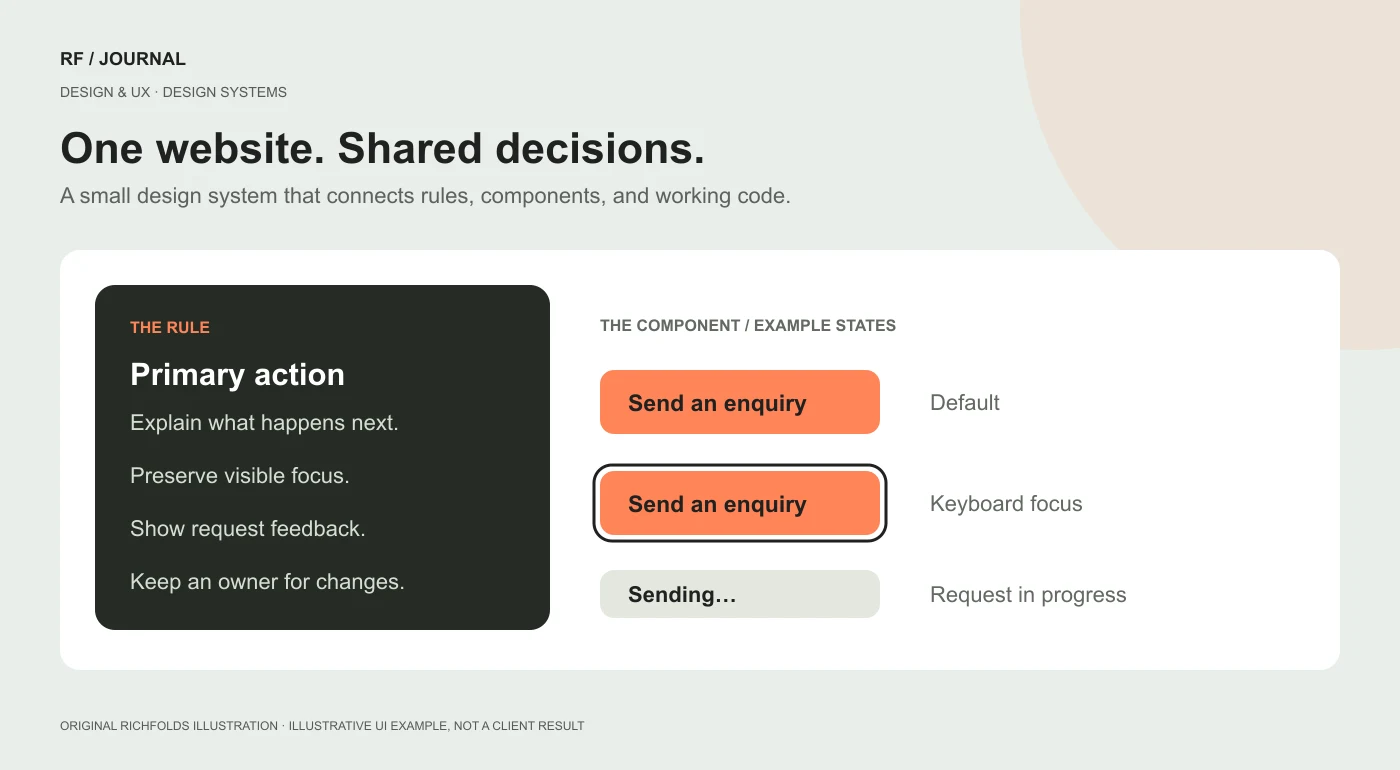
For example, a style guide might specify a coral accent. A component library might include a coral button. The system should also explain when that button is appropriate, how its label should read, what happens while a request is running, and who updates the pattern when a problem is found.
Without those decisions, a team can reuse the same attractive button in several confusing ways. Consistency of appearance is helpful. Consistency of meaning is the part that keeps customers from having to guess.
Established systems provide useful references. The GOV.UK Design System distinguishes styles, components, and patterns, and includes research context to help teams judge what they can use or adapt. Borrow the discipline of documenting decisions; do not assume that a government service’s visual identity or interaction is automatically right for a clothing store.
Start with an inventory of the live website
Pick a few important journeys: making an enquiry, finding a service, reading an article, and buying a product if the site has commerce. Collect the interface pieces those journeys use.
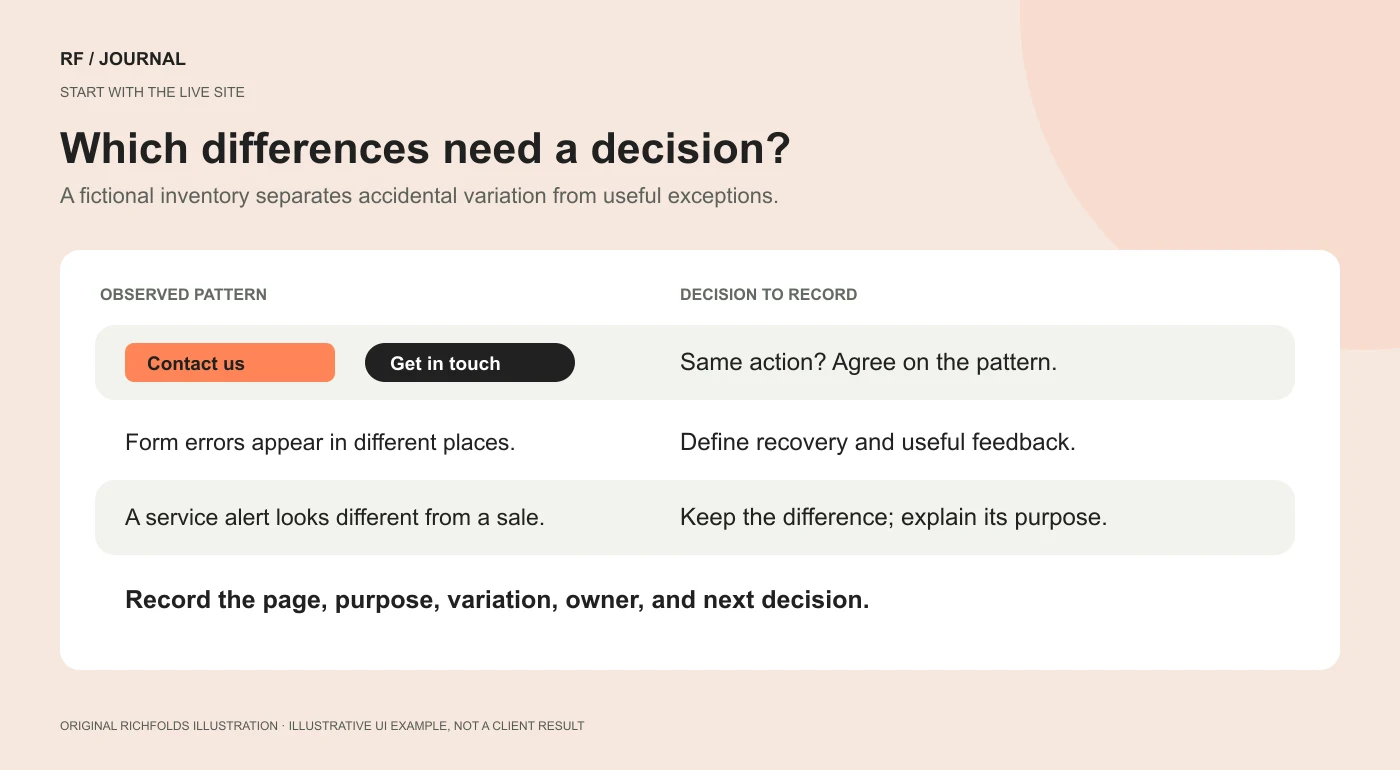
Look for differences that affect understanding or maintenance. Are there several primary button styles? Do similar cards use different heading levels? Does one form explain errors next to the field while another clears everything and shows a message at the top?
Record where each example lives and what it does. A simple inventory might contain the pattern name, page URL, observed variation, owner, and proposed decision. The first useful output is a list of inconsistencies worth resolving, not a new visual identity.
The USWDS maturity model supports incremental adoption and explicitly includes an inventory of current components. Its government context differs from a small commercial website, but the practical lesson transfers: examine real needs and existing patterns before trying to standardize everything.
Distinguish intentional differences from accidental ones. A promotional banner and an urgent service notice may need different treatments because they communicate different things. A system should explain that difference rather than flatten every message into the same beige box.
Define a small set of shared values
Design tokens are named values used to represent recurring design decisions. For a small website, a useful starting set might cover text, surfaces, accents, borders, spacing, type sizes, and corner radii.
Prefer names that describe a role. “Action background” explains more than “orange 3,” especially if the brand color changes later. Keep the relationship between the raw color and its use understandable, and avoid a naming scheme that needs a separate induction course.
For example, a fictional project might distinguish its page background, card background, primary text, quiet text, action background, and action text. Those names describe responsibilities. They do not prescribe one universal palette for every website.
CSS custom properties are one browser-native way to store reusable CSS values. A developer can choose how to connect those values with the actual theme or application. The important project decision is where the authoritative values live and how changes reach the places that use them.
Do not assume that a token is accessible merely because it has a thoughtful name. Review the actual foreground and background pairing, focus treatment, and context. “Text on coral” still needs to be readable when it leaves the naming workshop.
Build one component all the way through
Choose a frequently used component, such as a primary action in an enquiry form. Write down its purpose before drawing every possible variant.
For this example, the purpose is to submit an enquiry after the required information is complete. The label should tell the visitor what the action does. Its behavior should explain whether submission is happening, whether it succeeded, or what needs correcting.
A useful component record includes:
- Its purpose and the situations where it should not be used.
- The expected label and any permitted alternatives.
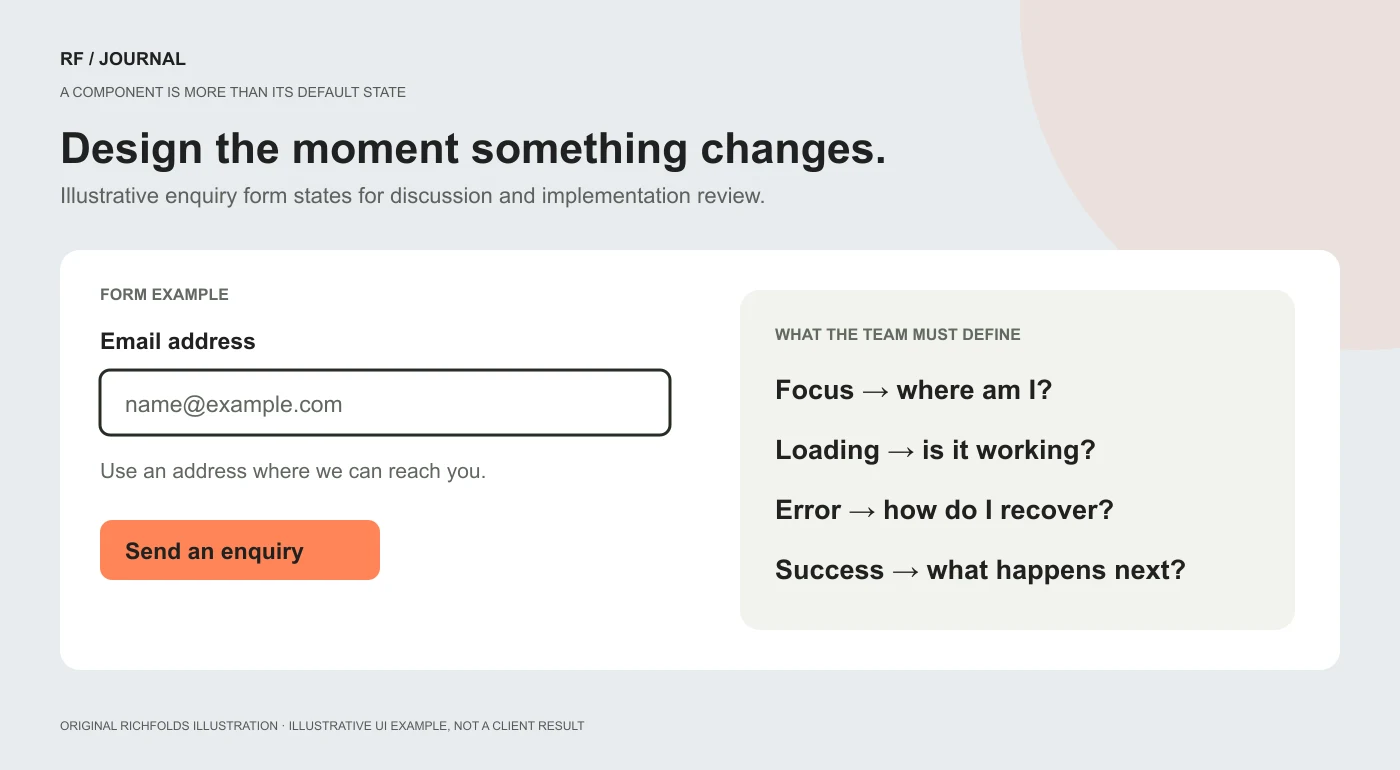
- Its default, focus, loading, error, and completion behavior as relevant to the flow.
- Its relationship with surrounding help text and validation.
- Its implemented location and the person responsible for maintaining it.
Notice that these are decisions about the experience, not just decorative states for a portfolio image. A loading treatment is useful when the request actually takes time. An error state is useful when the visitor can understand the problem and recover.
Keep the implementation appropriate to the action. A link that navigates somewhere and a button that performs an action may look related, but their behavior and semantics should not be chosen solely to match a screenshot.
Give keyboard focus and form labels a proper place
If a visitor uses a keyboard, they need to know which control is active. W3C’s Focus Visible explanation describes the need for a visible keyboard focus indicator. Include that state in the component specification and review it in the browser.
Likewise, W3C’s form-label guidance explains associating controls with labels that describe their purpose. A neat placeholder inside an empty field is not a complete plan for how people identify that field while entering information.
For the enquiry example, keep a clear label for the email field, useful instructions where needed, and a way to understand a validation error. Ask the developer to verify the programmatic relationships as well as the visual layout.
These checks are part of the work, not a certificate that the entire site is accessible. A component can behave correctly in isolation and still be used badly inside a larger page. Test it in the real journey and arrange a broader accessibility evaluation appropriate to the project.
Write rules that survive real content
A card with a two-word heading and a perfect photograph is easy to arrange. The useful test is the card with a long title, no image, and a category name that wraps onto another line.
Decide what should happen. Can the heading wrap naturally? Is an image essential to understanding the card? Does the action stay understandable without one? Does a grid rely on every editor writing exactly the same number of characters?
Document the content constraints that matter, and explain their purpose. An editor should know whether a limit protects readability or reflects a genuine platform constraint. “Please keep it short” is a preference. An example showing the consequence of an overlong label is guidance.
Include ordinary language in the system. Describe what a successful form confirmation should communicate, how an empty result should help someone recover, and which terms need to stay consistent across the site.
This is where a small system becomes useful to people who never open the design file. It gives an editor a decision they can make confidently instead of a rule they have to ask permission to interpret.
Connect design names to the actual implementation
The designer and developer should be able to identify the same component without playing a matching game between screenshots and class names.
For a WordPress site, the implementation might be a reusable block, a template part, or a theme component. For a storefront, it might belong in a section, snippet, or the application’s existing component structure. Use the platform’s architecture rather than forcing every project into the same file layout.
Record the design reference, the code location, the relevant variations, and how the component is verified. If the design and code intentionally differ, explain why. A technical limitation is easier to discuss when it is written down than when it reappears as a surprise at every review.
Our Figma workflow article explains how code-backed prototypes and shared specs can support that conversation. A prototype can help the team agree on behavior, while the production implementation still needs its own review.
Avoid creating a second component library inside a new tool without deciding how it relates to the first. Two sources of truth tend to become two sources of slightly different truths.
Give changes a lightweight route into the system
A small team does not need a committee for every spacing adjustment. It does need an answer to three questions: who proposes a change, who checks its impact, and how do other people learn that it happened?
Use a short change note. Describe the problem, the proposed adjustment, the places affected, and the verification. Keep unresolved suggestions separate from approved guidance.
For example, a fictional change might increase room for longer card titles. The designer checks hierarchy and wrapping; the developer checks the component’s existing uses; the editor confirms that the revised guidance is understandable. The note should say what was checked, not announce that the entire website is now future-proof.
Make exceptions visible. If one landing page needs a different treatment, record the reason and decide whether it is a reusable variation or a local exception. Not every special case deserves permanent membership in the library.
Use AI to apply decisions, not invent the missing ones
An AI assistant can help locate repeated styles, propose documentation from existing code, or draft component examples. Review its output against the real project.
Give it specific constraints: use existing tokens, preserve the component’s behavior, list missing states, and identify assumptions rather than silently adding new variants. Ask for a proposed change first when the impact spans multiple pages.
Do not treat the assistant’s confidence as evidence that a component is accessible or that a change is compatible with every template. Check the rendered result and the relevant code. The value of the system is that the assistant has clearer decisions to follow, not that someone has outsourced responsibility to a very fluent autocomplete.
This also helps keep client work honest. If a prototype uses sample data or a component has not been tested in production, say so. Good documentation makes the boundary easier to see.
How to tell whether the system is helping
Look for concrete changes in the work. Can an editor choose the right pattern without asking? Does a developer know which component to reuse? Can a reviewer find the intended error behavior? Are the same visual inconsistencies returning after each update?
If you want to measure time or rework, record a baseline and a consistent method. Do not claim a productivity improvement simply because the library contains more components this month.
Also watch the cost of maintenance. Remove obsolete examples, clarify contradictory rules, and keep the system close to the implemented site. A smaller, accurate library is easier to trust than an impressive one whose examples stopped matching production several releases ago.
Our guide to choosing a CMS around the way your team works covers a related question: whether the platform helps the people who must maintain the experience after launch.
Start with the decision you keep making twice
For your first pass, inventory the important journeys, agree on shared values, and take one frequently used component through its real states. Connect that component to the code, add content guidance, and assign an owner.
Use it on an actual page. Ask the editor, designer, and developer what remains unclear. Improve the guidance before expanding the library.
The best starting system is not the largest one you can assemble. It is the smallest set of decisions your team can reliably use, explain, and maintain. If it prevents the next debate about which button is the real button, it has already earned a useful place in the project.