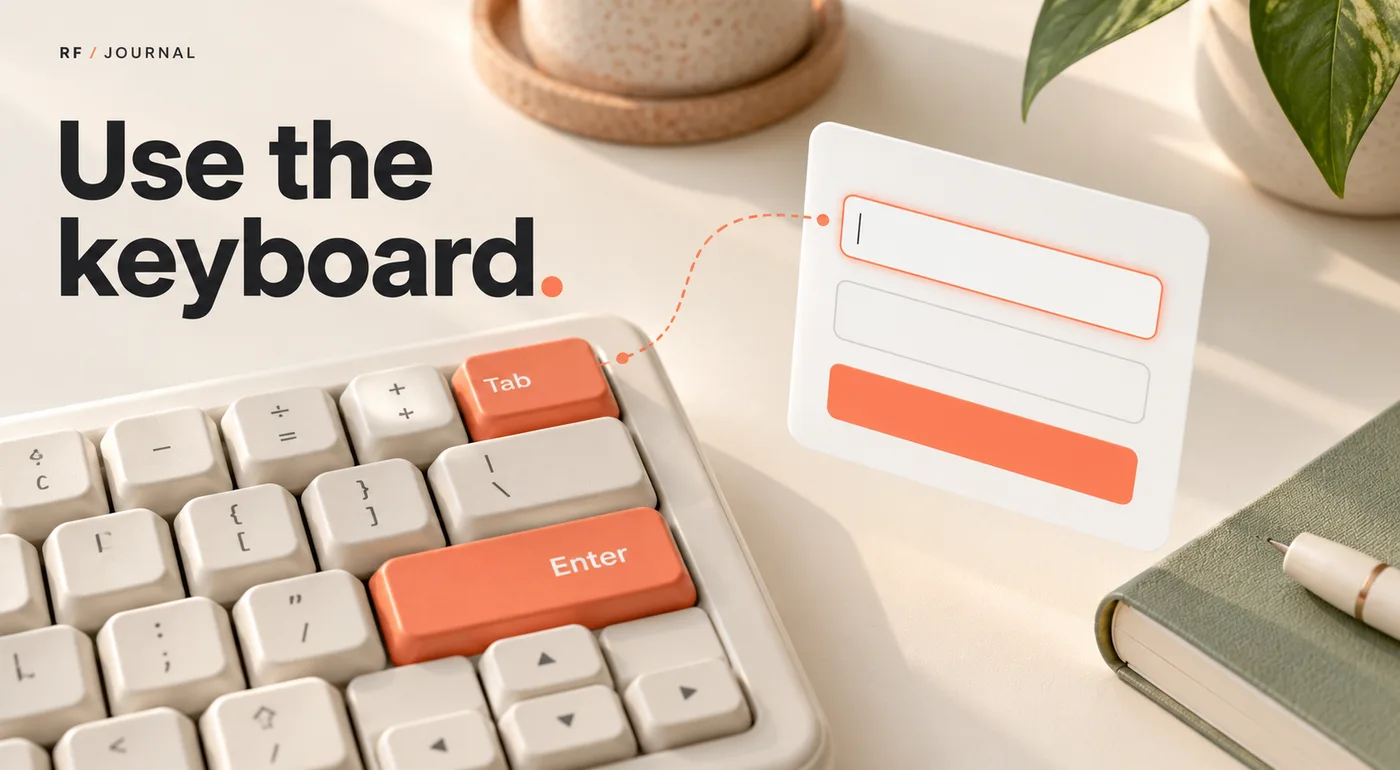
Try sending an enquiry without touching the mouse. If the focus indicator disappears somewhere between the navigation and the submit button, you have found a problem that a polished homepage screenshot cannot show.
A useful keyboard accessibility check follows a real task from start to finish. It asks whether a person can find the controls, understand where they are, operate the interface and recover from an error. Counting the number of things that receive focus is only the beginning.
This guide is a practical first-pass review for business owners, designers and developers. It is not a full accessibility audit, a WCAG conformance assessment or legal advice. The sources were checked on 17 October 2026. The example website and proposed test observations are fictional.
Choose a task that matters to the business
Start with an ordinary task: find a service and send an enquiry, locate a product and choose its options, or open an article and follow a relevant link. A complete task is a better unit of review than a random tour of attractive components.
Write down the starting URL, intended outcome and any assumptions. For a contact task, establish whether the tester needs to open a menu, select a service, complete a form and dismiss a confirmation dialog. Include an error or empty state when it is part of the experience.
W3C's Easy Checks resource provides a useful starting point while making its limitations explicit. Passing a small set of preliminary checks does not establish that the entire site is accessible.
Keep the first session narrow enough to document properly. One task with reproducible findings is more useful to the developer than a long message saying the website feels a little awkward.
Record the testing environment
Note the browser, operating system, viewport, page version and keyboard-navigation settings. Some environments need keyboard-navigation options enabled before all controls participate as expected. Establish that baseline rather than treating every unexpected keypress as a site defect.
Keep the mouse out of the task itself after setup. If you use it to rescue the journey, record where and why. A task completed with two quiet mouse clicks in the middle is not a successful keyboard-only task.
Use authorized test arrangements for submissions or purchases. A keyboard review should not send fake commercial enquiries to an unsuspecting team or place a real order by accident. Agree on the endpoint of the test before activating anything that creates an external action.
The browser setup is part of the evidence, not a footnote. When another reviewer tries to reproduce a finding, those details help distinguish a repeatable interface issue from a different environment or starting state.
Follow focus, order and operation separately
Focus identifies the element currently receiving keyboard input. Order concerns the sequence in which the visitor reaches interactive elements. Operation concerns what happens when the visitor tries to use one. A component can pass one of these checks while failing another.
For example, a custom service selector might receive focus in a sensible place but never open through the keyboard. A menu might open correctly while sending focus into links that are visually hidden. Keep those findings separate so the implementation owner can identify the relevant behavior.
W3C's keyboard criterion explanation describes the requirement for functionality to be operable through a keyboard interface, with a specific exception for functions whose underlying input depends on a movement path. For ordinary business-site controls, begin by asking how the same task is completed without a pointer.
Use the established behavior of the control you are testing. Do not assume every composite widget should be operated by repeatedly pressing Tab. If its keyboard model is unclear, ask the developer to identify the intended pattern and compare that intention with what the visitor can discover.
Make focus visible in the actual layout
An outline that exists in CSS is not necessarily an outline a visitor can see. Inspect it against light and dark areas, near card edges and inside components that clip their contents.
Also check sticky headers, bottom banners and overlays. A focused control can be present in the document while sitting behind another part of the interface. W3C's Focus Not Obscured guidance explains the minimum criterion around keeping focused components from being entirely hidden by author-created content.
In your working review, record the practical observation precisely. “The focused submit button is entirely covered by the fixed banner at this viewport” is actionable. “Focus looks wrong” forces someone else to repeat the investigation without knowing what to look for.
Keep the focus design visible during component review. It belongs beside hover, loading and error states in the design file, rather than being added at the end by whoever remembers the outline property.
Treat a dialog as a complete interaction
A modal dialog introduces another task: enter it, understand it, operate its controls and leave it. Opening the panel with the keyboard proves only the first part.
W3C's modal dialog pattern describes focus moving into the dialog, keyboard navigation within it, closing with Escape and returning focus appropriately when it closes. The correct initial focus target depends on the dialog's content and purpose; it is not always the first input.
For a fictional enquiry confirmation, test what receives focus when the confirmation appears, whether its close control is discoverable and where the visitor resumes afterward. If the underlying form remains behind a modal layer, its controls should not behave as though the dialog does not exist.
Do not copy a focus trap into every popup. A modal dialog and a nonmodal menu are different patterns. Ask the developer to explain the intended behavior before turning a useful pattern into a global script that catches every panel on the site.
Check the form as a conversation
Read the field labels, instructions and required-field information before entering data. A placeholder that vanishes as soon as typing starts should not be the only explanation of what the field means.
W3C's Labels or Instructions guidance explains the importance of giving users the information needed to enter data. In a review, inspect whether the words are useful as well as whether they exist: “Details” may be technically present yet still leave a customer guessing about the expected answer.
Try the agreed validation case. Can the visitor locate the problem, understand the correction and continue without unnecessarily starting over? Then inspect the accepted-submission state. A loading animation, error message and success confirmation communicate different outcomes.
Keyboard testing alone does not establish whether dynamic messages are correctly exposed to screen readers. Record that as a separate verification task rather than claiming the form is fully accessible because a sighted keyboard reviewer could complete it. Our contact-form guide explores related questions about loading and confirmation behavior.
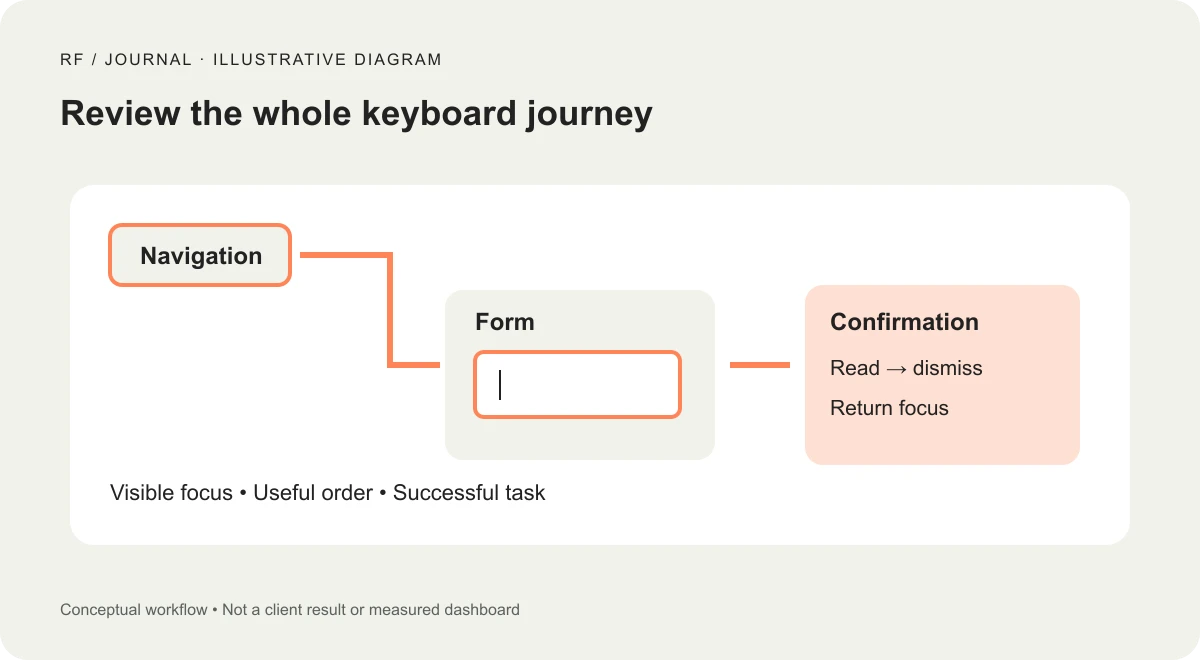
Illustrative workflow, not a client result or completed test.
A fictional service enquiry, step by step
Consider a local service company's website with a navigation menu, a service page, a contact form and a confirmation dialog. The proposed review starts at the homepage and ends after the confirmation is dismissed. No real business has been tested for this example.
First, the reviewer establishes the normal keyboard setup and follows the navigation to the service page. They record whether focus is visible and whether the sequence matches the intended reading and task order. If the menu closes unexpectedly, the record includes the key pressed and the state that was open.
Next, the reviewer enters the contact journey. They inspect the service selection, fill the allowed test data and trigger the agreed validation case. A successful review record describes whether the error could be found and corrected, not merely that red text appeared.
Finally, they complete the authorized test submission, inspect the confirmation and close it. They check whether the task leaves the visitor in a sensible place. Any mouse rescue, unexpected navigation or lost data is recorded at the step where it occurred.
The result is a set of observations. It is not a certification or a claim about the experience of every disabled visitor. A broader assessment requires additional methods and appropriate expertise.
Write findings a developer can reproduce
A useful issue report contains the starting state, exact action, observed result, expected task behavior and effect on the visitor. Add a screenshot or short recording when it helps show focus or timing, with no private test data exposed.
| Weak finding | More useful finding |
|---|---|
| The menu is broken | On the service page, the expanded menu closes when focus moves from its trigger to its first link |
| The form is confusing | After the agreed invalid submission, focus remains below the error and the affected field is not identified in the visible message |
| The popup is inaccessible | The confirmation opens, but keyboard focus remains on a control behind the modal layer |
These are fictional report examples, not observations about RichFolds or a client. Their purpose is to show the level of detail needed for a repair and a meaningful retest.
Assign severity according to the task impact and available alternatives. A complete blocker on submitting an enquiry deserves different attention from a minor visual inconsistency. Keep the reasoning beside the label so priority does not depend only on how dramatic the screenshot looks.
Combine automated checks with human review
Automated tools can help identify certain issues, but they cannot decide whether every interaction makes sense to a person. W3C's evaluation overview places tools alongside other evaluation activities rather than treating one scan as the whole assessment.
Use the findings to plan the next review. A keyboard task can reveal a focus problem that needs screen-reader testing, a content issue that needs clearer instructions or a component defect shared across several pages. Route the issue to the right owner.
When involving disabled participants, define the research purpose, access arrangements and compensation appropriately. Their participation provides valuable evidence about actual use; it should not be presented as proof that one participant's experience represents every disability or assistive-technology setup.
Make the fixes part of the component system
Repair the shared component when the problem is shared. A menu used on ten pages should not need ten unrelated focus patches. Add the relevant states and keyboard expectations to its documentation and retest representative uses.
Our small-business design-system guide explains why a useful system includes behavior and content rules as well as visual styles. Focus, validation and dismissal behavior belong in that system.
Keep a short task checklist for future releases. Recheck after changes to navigation, forms, dialogs, fixed banners or shared components. A redesign can preserve the appearance of a button while changing how it behaves.
Begin with the journey customers need most. Put the mouse aside, record what happens and fix the first reproducible blocker. Then broaden the review with the methods needed to assess the parts this first pass cannot establish.
Visuals: AI-generated cover with fictional objects and interfaces, plus an original illustrative workflow diagram. No client screenshots or measured results are depicted.