
A carousel is often proposed as a diplomatic solution: every department gets a slide, the page stays compact and nobody has to choose the most important message. The reader then has to negotiate with a moving interface to find it.
A useful carousel gives people control over what changes and when. Before building one, decide whether rotation helps the task, provide understandable controls and test what happens to keyboard focus and reading. Slowing the timer is not a complete accessibility plan.
This guide is a design and implementation review framework based on W3C guidance checked on 22 October 2026. It does not certify an existing website or claim that RichFolds' current carousel has passed a complete accessibility audit.
First decide whether anything needs to move
Ask what the visitor needs from the section. If the task is to compare three services, showing three stable cards may be clearer than revealing one at a time. If the task is to browse a collection of recent articles, manual previous and next controls may be enough.
Do not treat movement as a requirement simply because a reference site uses it. The reference may have a different content volume, audience or business goal.
Write a proposed success condition: “A visitor can identify a relevant article and open it without losing the item while reading.” That gives the team a more useful target than “Make the hero feel dynamic.”
Also decide what happens without JavaScript. Essential links should remain reachable through an appropriate fallback. A visually elegant component is not useful when a script failure removes the route to its content.
Automatic rotation needs a deliberate control
The WAI-ARIA carousel pattern describes previous and next controls and, for automatic rotation, a stop/restart control. Its guidance includes stopping rotation when keyboard focus enters and not restarting unless the user explicitly requests it, along with stopping on pointer hover.
That last distinction matters. Pausing only while a link has focus, then immediately restarting when focus leaves, can return the interface to motion before the reader is ready.
Keep the control discoverable and name the action it performs. A decorative icon without an understandable accessible name leaves users guessing. The visual design can be quiet while the interaction remains clear.
Do not rely on hover alone. Some people use touch, keyboard navigation or assistive technology without moving a pointer over the slide. Each relevant interaction route needs review.
A longer timer does not remove the question
WCAG's Pause, Stop, Hide explanation distinguishes moving content from automatically updating information. Its criteria concern user control under defined conditions; they are not a rule that every carousel becomes accessible when each slide remains visible for a particular number of seconds.
A seven-second timer may feel calmer than a rapid transition. It still needs evaluation. Reading speed, content length and the time required to locate an action vary between people.
Make the component's behavior explicit in the specification: initial state, rotation conditions, pause action, focus behavior and manual navigation. If the team cannot describe those states, the tester cannot reliably verify them.
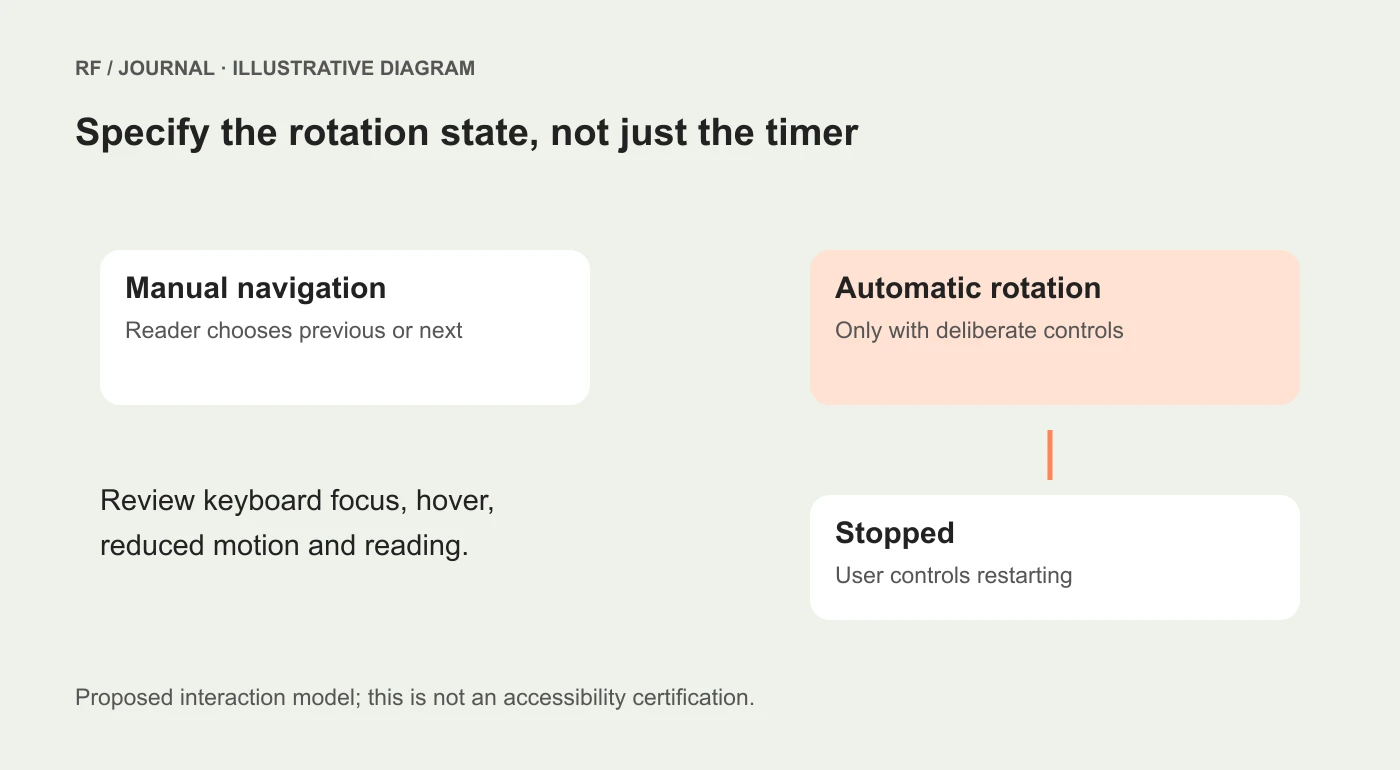
Proposed interaction states, not a conformance assessment of an existing carousel.
Keep keyboard focus attached to a sensible place
Previous and next controls should be usable without a mouse. After activating one, the user needs a predictable focus position and a comprehensible way to reach the new content.
Avoid moving focus simply because a timer changed the slide. Also avoid leaving focus inside content that has become visually hidden. Both can produce a confusing mismatch between what is seen and what can be operated.
Check hidden slides carefully. An offscreen link that remains in the keyboard sequence can make a user tab through content they cannot see. Conversely, hiding content incorrectly can remove something the interface still presents as available.
Use established implementation guidance rather than inventing ARIA behavior from scratch. The precise roles and relationships depend on the chosen pattern, including whether slide selectors are ordinary buttons or a tab-based interface.
Describe navigation without creating unnecessary noise
A carousel needs enough information for people to understand its purpose and current position. It does not need to announce every automatic transition at maximum urgency.
Plan how the section is named, how controls are labeled and how a slide's position is communicated. “Next article” can be more useful than an unnamed arrow. A visible counter can help some readers, but it does not replace a meaningful label.
Review screen-reader output in the actual implementation. A component can have sensible-looking attributes and still produce repetitive or confusing announcements once headings, images and links are combined.
The acceptance question is practical: Can a person identify the section, understand the available actions and read the selected content without unexpected interruption? A code inspection alone cannot answer all of that.
Respect motion preferences without treating them as the whole solution
A reduced-motion preference is a useful input when deciding whether animation or automatic rotation should begin. Keep content and controls usable when motion is reduced.
That preference does not replace a pause mechanism for everybody else. Nor does it establish that focus behavior, labels or hidden slides are correct.
Consider the transition itself. A dramatic zoom may communicate little that a simple content change cannot. Motion should support orientation rather than become another task for the visitor to process.
If the component sits beside text, a form or another reading task, evaluate whether its movement interferes with the rest of the page. The effect extends beyond the carousel's own border.
Use a focused review matrix
| Review route | Task | Evidence to record |
|---|---|---|
| Keyboard | Enter the section, navigate and open an item | Focus location, visibility and destination |
| Pointer | Hover, navigate and stop rotation | Exact state changes |
| Touch | Find controls and activate the intended item | Target usability and accidental activation |
| Screen reader | Identify section, controls and selected content | Names, sequence and unnecessary announcements |
| Reduced motion | Load and operate with the preference enabled | Initial motion and retained functionality |
| Narrow layout | Read a long title and use controls | Clipping, wrapping and page overflow |
Add content variations: a long title, a missing image, a single item and several items. A carousel with one slide should not pretend there is something else to navigate to.
These are proposed checks. Record actual device, browser and assistive-technology combinations when performing them. Do not turn an unchecked matrix into a claim of universal support.
Keep the editorial decision visible
Even a technically careful carousel can contain too much copy or hide the most useful content. Review the content hierarchy with the same attention as the interaction.
Choose a strong first item and keep essential information available elsewhere. Do not assume visitors will wait through an entire loop. If every slide contains something indispensable, the layout probably needs reconsideration.
Our keyboard accessibility checklist helps review the surrounding page, while the design system guide can help standardize controls and states.
Start with manual navigation unless automatic rotation has a clear purpose. If rotation remains, specify the control and state behavior before polishing the animation. The reader should be able to concentrate on the content without racing the interface.
AI-assisted editorial guidance. Original illustrations are conceptual, not client evidence. Platform documentation checked 22 October 2026.