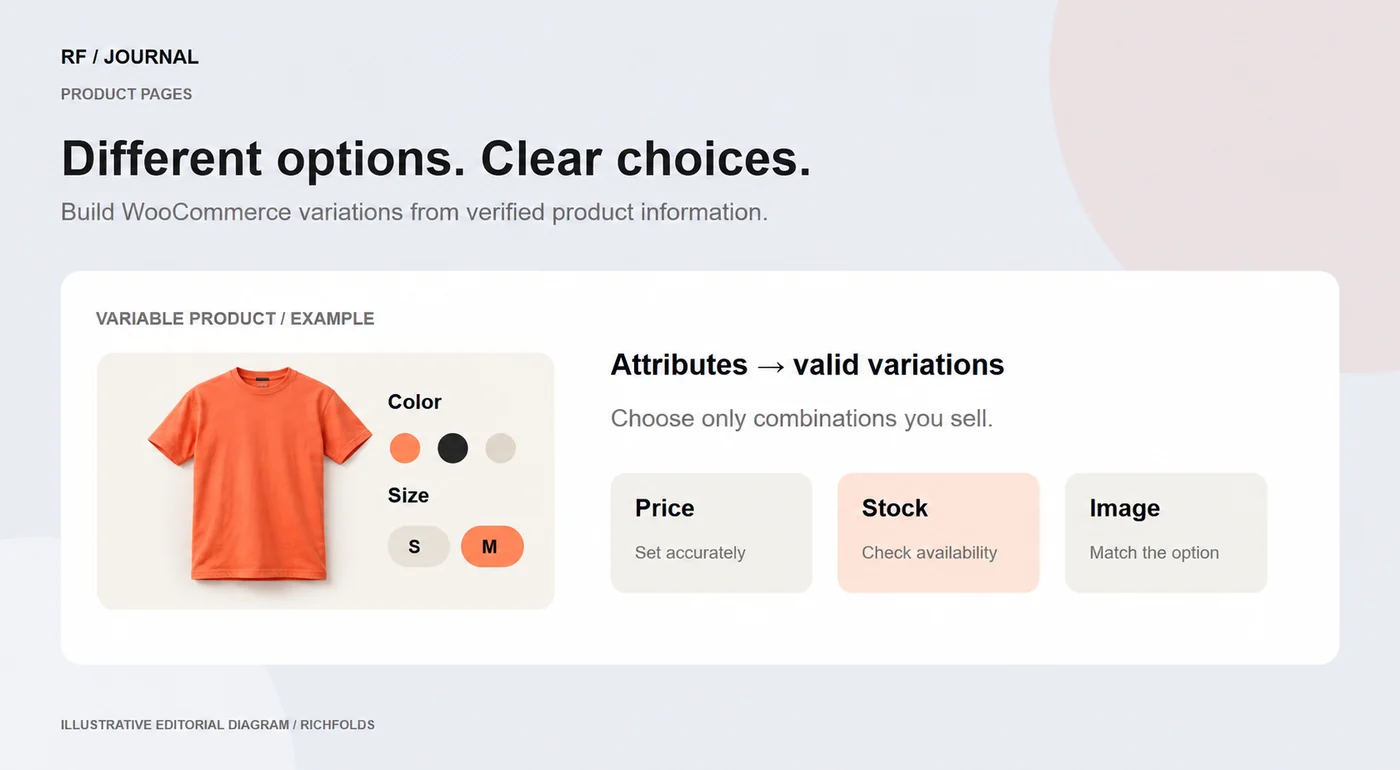
WooCommerce variable products let a shopper choose among options of a product, with information maintained for the individual variations. Before generating combinations, define which options are genuinely available and which details change between them. A clean variation model makes both administration and purchasing easier to understand.
A size and color selector should represent actual products the business can supply. Generating every theoretical combination can create a catalog that looks complete but contains impossible or missing choices.
Define attributes before creating variations
Choose consistent names and values for the attributes customers use. If several products share an attribute, decide how the catalog will maintain a common vocabulary. For a demonstration clothing item, size and color are reasonable example attributes, but the available combinations still need confirmation from the catalog owner.
Distinguish a descriptive attribute from one that creates a selectable variation. A material description may help the customer without requiring a separate stock item for every value.
Create only supported combinations
WooCommerce’s variable-product documentation describes assigning attributes and creating variations. Use that workflow with the verified combinations. Review each variation rather than assuming a bulk-generation step has completed the product configuration.
Set the relevant price, stock and product details. WooCommerce notes that variations without prices do not appear for customers. Also consider whether a variation needs its own image, identifier or delivery information. Those fields should come from the product source of truth, not an estimate made while editing the page.
Make selection behavior understandable
Check the order and labels of the controls. A default selection can reduce effort, but it should not imply that a different option was chosen by the customer. Make the selected combination, availability and price clear before adding the item to the cart.
If a combination is unavailable, the page should explain the state rather than leave the visitor guessing why an action is disabled. Review the theme and any variation-related extensions together; the displayed experience can depend on more than the product data.
Test representative scenarios
Use a short matrix that includes an available combination, an unavailable combination and a product whose variation details differ materially. Change a choice after making an initial selection and confirm that the displayed information updates correctly.
Follow the chosen variation through the cart and a suitable test checkout. Check the item description and information used by fulfillment. Do not create real shipments as part of an interface test without an agreed operational process.
Maintain the data after launch
Assign an owner for variation changes and imports. When an attribute is renamed or a combination is discontinued, review the associated variations and customer presentation. Recheck custom gallery or selection behavior after relevant updates.
The useful result is a product model the team can maintain and customers can understand. For category and filter implications, continue with our product discovery guide.